

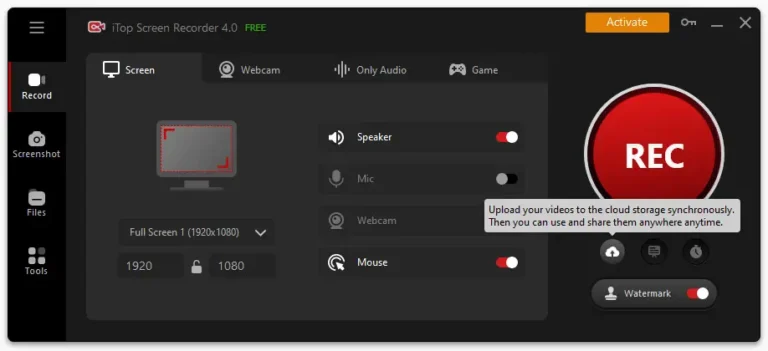
In today’s digital age, screen recording has become an essential part of both professional and personal computing. Whether you’re a teacher preparing an online lesson, a gamer sharing gameplay, or a marketer creating tutorials, having reliable screen recording software makes all the difference. Among the many options available, iTop Screen Recorder has emerged as one of the most popular tools due to its simplicity, versatility, and advanced features.
This comprehensive guide explores everything you need to know about iTop Screen Recorder — from its key features and installation process to practical tips on how to get the most out of it.
What Is an iTop Screen Recorder?
iTop screen recorder is a free and user-friendly screen recording program developed by iTop Inc., designed for Windows and macOS users. It enables you to record your screen, system audio, microphone input, and webcam simultaneously. What makes it stand out is the balance it offers between performance and accessibility — you don’t need to be tech-savvy to produce high-quality recordings.
The software supports full-screen, selected-area, and windowed recording modes. This flexibility allows users to capture exactly what they need — whether it’s a short software tutorial, a live stream, or a video call session.
Key Features of iTop Screen Recorder
High-Definition Recording
iTop supports video recording in resolutions up to 4K UHD, ensuring crystal-clear visuals. Whether you’re making professional tutorials or gaming content, the result looks smooth and detailed, with adjustable frame rates up to 120 FPS for more demanding tasks.Audio Capture Options
The software records both system audio and microphone input, making it perfect for narrations, commentary, or online meetings. You can also choose to record only one of these sources, depending on your needs.Built-in Video Editor
After recording, iTop provides a lightweight video editor that allows you to trim, cut, merge, and add text or filters to your clips without leaving the program. This eliminates the need for third-party editing tools for simple tasks.Game Recording Mode
For gamers, iTop offers a dedicated game recording mode optimized for performance. It detects and records gameplay with minimal lag, supporting major titles like Fortnite, Minecraft, and Call of Duty.No Time Limit and No Watermark (Optional)
Unlike many free screen recorders, iTop offers a no-time-limit recording feature. In the free version, videos include a watermark, but you can remove it by upgrading to the Pro version.Multiple Output Formats
iTop Screen Recorder supports popular video formats such as MP4, AVI, FLV, MOV, and MKV, making it compatible with most media players and editing software.Scheduled Recording
A useful addition is the auto-recording scheduler, which lets you set start and end times for your recordings. This is particularly helpful for recording live streams, online webinars, or time-sensitive events when you’re away from your computer.
Installation and Setup
Installing online screen recorder is quick and straightforward:
Download the Installer
Visit the official iTop Screen Recorder website and click the “Free Download” button.Install the Program
Run the downloaded installer and follow the on-screen instructions. The installation takes only a few minutes.Launch and Configure Settings
Once installed, open the program and navigate to the Settings menu. Here, you can configure video resolution, frame rate, output format, audio sources, and hotkeys.Log In (Optional)
While iTop works without registration, logging in allows you to sync your preferences and unlock premium features if you’ve purchased the Pro version.
How to Record Your Screen Using iTop
Recording your first video is incredibly easy. Follow these steps:
Select Your Recording Area
Choose between full screen, a selected region, or a specific window.Enable/Disable Audio Sources
Decide whether you want to capture system sound, microphone input, or both.Add Webcam (Optional)
Turn on the webcam feature if you want to appear in your video — ideal for tutorials or reaction videos.Start Recording
Press the red REC button or use the hotkey (default: F9) to start recording. A small toolbar appears, letting you pause, resume, or stop anytime.Edit and Save
After finishing, the video automatically appears in the media library. From there, you can edit, rename, or export it in your preferred format.
Pro Version vs. Free Version
The free version of iTop Screen Recorder is feature-rich, but upgrading to the Pro version unlocks several benefits:
No watermark on recordings
Hardware acceleration for smoother performance
Advanced editing tools and filters
Priority technical support
For professionals who regularly create content, the Pro version is worth the investment.
Performance and User Experience
One of iTop’s biggest advantages is its lightweight design. It runs smoothly even on older systems, consuming minimal CPU resources. The interface is clean, intuitive, and free from clutter, allowing beginners to record instantly without a learning curve.
Users also praise its stability — there are no sudden crashes or frame drops during long recording sessions. Moreover, the built-in video editor and flexible format support make it an all-in-one solution.
Tips for Better Screen Recording
Close background apps to avoid lag.
Use an external microphone for clear audio.
Adjust frame rate and resolution depending on your PC’s performance.
Use hotkeys for seamless control during recording.
Edit immediately after recording to ensure quality and accuracy.
Final Verdict
iTop Screen Recorder is an excellent choice for anyone looking for a reliable, easy-to-use, and powerful screen recording tool. Its balance of functionality, performance, and accessibility makes it ideal for beginners, gamers, educators, and professionals alike.
With HD recording, audio capture, built-in editing, and optional watermark removal, it provides everything you need to create high-quality screen recordings effortlessly. Whether you’re capturing gameplay, producing tutorials, or recording meetings, iTop Screen Recorder delivers a smooth and efficient experience.
